![LogoTopSolidUSA_transparent.png]](https://kb.topsolidusa.com/hs-fs/hubfs/LogoTopSolidUSA_transparent.png?height=45&name=LogoTopSolidUSA_transparent.png)
1.) Shut down TopSolid
2.) Right click on TopSolid Application Desktop icon and go to “Properties”
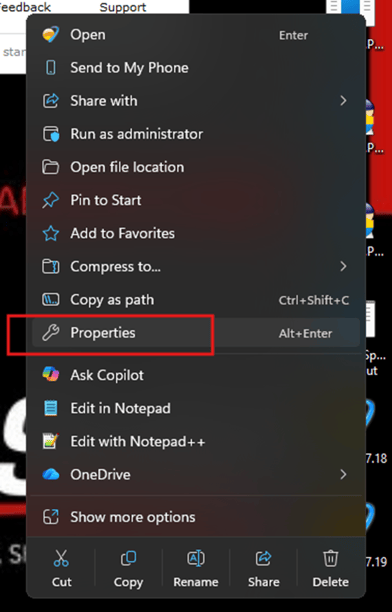
3.) Go to the Shortcut Tab.
4.) Find the "Target" box, go to the end of the string and add “ -log”. There should be a space in front of the dash:
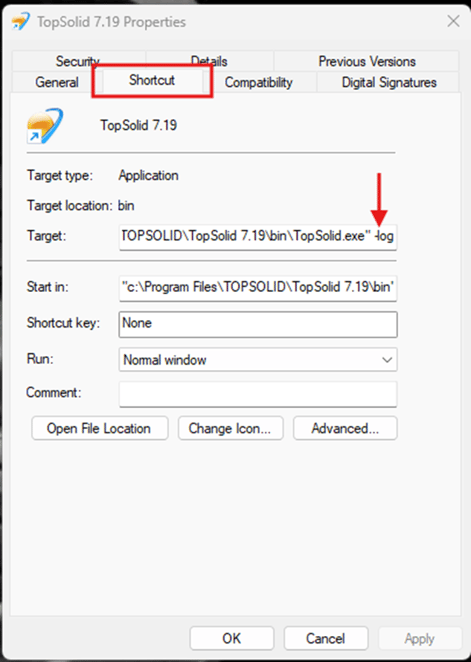
5.) Hit “Apply”, then “Ok”, and run TopSolid
6.) Run the commands needed to cause the crash and once the crash happens, go to : C:\Users\{your user}\AppData\Roaming\TOPSOLID\TopSolid\{version} and send the generated log file to us.
7.) Follow Procedure again to remove the " -log" from the shortcut.
Extra Step - System File Checker
***(System File Checker) is a built-in Windows utility that scans the integrity of your protected operating system files. If it detects that a file has been corrupted, modified, or deleted, it automatically replaces it with the correct, verified version
- In your windows search bar, search for the Commnad Prompt and run as administrator if you can (May need IT permission )
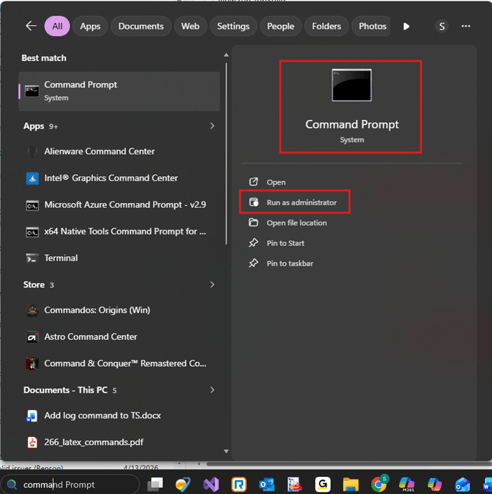
- Type sfc/scannow and let it run the scan. If it finds anything wrong, it will try and repair the issue and then you will need to reboot the computer.
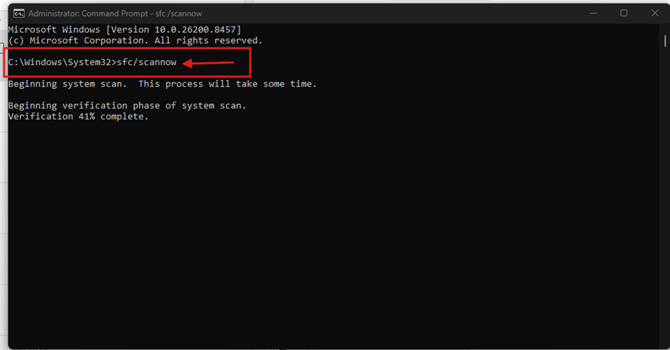
- If there are issues that cant be automatically resolved, your IT will need to assist in repairing your computer.